How to Choose the Right TFT LCD Monitor for Your Business?
Choosing the right Tft Lcd Monitor is a business decision, not a simple screen-size comparison. The wrong model can create glare, wasted desk space, or unnecessary replacement costs. A suitable display should match the employee’s daily work, connection standards, viewing distance, and operating environment.
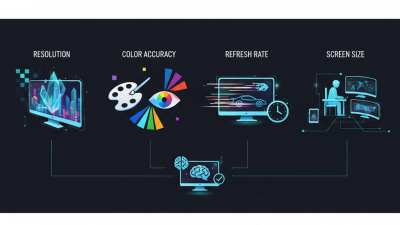
IDC’s Worldwide Quarterly PC Monitor Tracker reported approximately 30.7 million monitor shipments globally in the second quarter of 2024, representing 3.4% year-over-year growth. That figure shows continuing demand, but it does not identify the best screen for every company. Omdia’s display research also highlights changing demand across office, professional, gaming, and hybrid-work segments. Buyers should examine refresh rate, resolution, brightness, ergonomics, warranty coverage, and energy consumption together. One specification rarely tells the whole story.
Ross Young, a display industry analyst and founder of Display Supply Chain Consultants, has described the sector as “one of the most cyclical industries in the world.” His observation matters because panel prices, availability, and technology can change quickly. A procurement plan that looks efficient today may age badly next year. Think about a finance employee working beneath cool ceiling lights, or a designer checking fine color gradients for eight hours. Their needs differ sharply. No checklist is flawless. Real desk testing may expose assumptions that a spreadsheet misses. This guide explains how to compare a Tft Lcd Monitor using measurable performance, practical workplace experience, reliable industry evidence, and total ownership value.
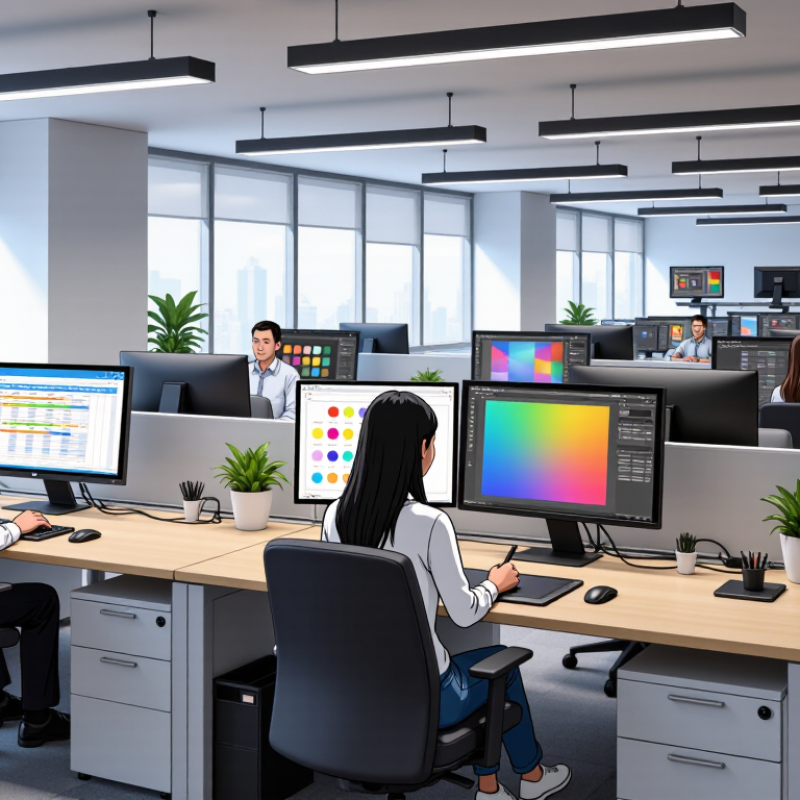
Define Business Needs: Screen Size, Resolution, Aspect Ratio, and 16.7M Colors
How to Choose the Right TFT LCD Monitor for Your Business?
Define the work before comparing specifications.
A 24-inch TFT LCD monitor with 1920 × 1080 resolution provides about 92 pixels per inch. It suits reception desks, point-of-sale systems, and routine office work. A 27-inch screen with 2560 × 1440 resolution reaches about 109 pixels per inch. Text appears sharper, while spreadsheets show more columns. Large screens can improve comfort, but they also require deeper desks and stronger mounting hardware. The International Data Corporation’s Worldwide Quarterly PC Monitor Tracker shows that commercial display demand remains closely tied to replacement cycles and hybrid working patterns.
Aspect ratio should match the workspace.
The common 16:9 format supports video, presentations, and standard software layouts. A 16:10 panel offers extra vertical space for documents and coding. That small difference can reduce scrolling. Sometimes, it matters more than screen size.
Color depth needs careful interpretation.
ITU-R BT.709 defines 8 bits per color channel. That produces 256 red, green, and blue levels, or approximately 16.7 million colors. This is enough for office dashboards, retail interfaces, and many industrial controls. It is not automatically enough for color-critical imaging. Panel type, calibration, viewing angle, and uniformity still influence real results. I have seen teams choose “16.7M colors” and overlook poor brightness consistency. That decision deserves a second look. Specification sheets simplify reality. Teams should test a sample monitor with actual documents, software, and lighting conditions before purchasing.
Compare TFT LCD Panels: TN, IPS, and VA Viewing Angles up to 178°
Choosing the right TFT LCD monitor starts with viewing angles, not only screen size. TN panels respond quickly and often cost less. However, colors can shift when viewed from above or sideways. This matters in shared offices or control rooms. VA panels create deeper blacks and strong contrast. Their image may still lose consistency at wider angles. IPS panels usually offer the most stable colors. Many IPS specifications list viewing angles up to 178° horizontally and vertically.
These figures describe ideal conditions. Real results depend on panel quality, brightness, room lighting, and calibration. I once tested a monitor rated at 178°, yet dark details changed from a side seat. That result was not useless, but it needed more careful evaluation. For design teams, medical reception areas, and customer counters, IPS is often the safer choice. VA can suit financial dashboards or video work. TN remains practical for fixed, single-user desks.
Tips: View sample screens from several seats before purchasing. Check skin tones, grey backgrounds, and small text. Ask for measured viewing-angle data, not only marketing claims. Test the display under your actual office lighting. A bright window can reveal glare quickly. Also consider stand adjustment, because correct height improves the usable viewing angle. Do not ignore response time, contrast, and warranty support. A wide angle cannot repair poor calibration or uneven backlighting.
Set Brightness Targets: Choose 250–350 cd/m² for Typical Office Lighting
When choosing a TFT LCD monitor, set a brightness target that matches the room, not the showroom. For typical office lighting, 250–350 cd/m² is a practical starting range. CIE S 008/E-2001 recommends approximately 500 lux for office reading and writing tasks, but screen brightness should not simply mirror desk illumination. A brighter panel can improve readability near windows, while excessive luminance may cause glare and visual fatigue.
Industry guidance supports adjustment rather than a fixed number.
ISO 9241-303 emphasizes suitable luminance, contrast, and viewing conditions for electronic displays. The U.S. Department of Energy’s display efficiency research also treats luminance settings as an important factor in operating energy use. In real offices, I usually begin near 300 cd/m², then reduce brightness until white backgrounds feel comfortable against printed paper. It is not perfectly scientific, but it is repeatable.
Watch the room at different times. Morning sunlight may justify 350 cd/m², while a dim afternoon workspace may need only 250 cd/m². Keep the monitor away from direct window reflections, and test dark text on white documents for ten minutes. Too bright? Turn it down. However, some purchasing teams make the opposite mistake and choose low-luminance panels to save energy. That can make spreadsheets look dull and encourage poor posture. A 250–350 cd/m² specification provides flexibility, but calibration still depends on windows, ceiling lights, task distance, and individual comfort.
Check Connectivity and Ergonomics: HDMI, USB-C, Height Adjustment, and VESA
Choosing the right TFT LCD monitor begins with the connections your staff use every day. HDMI is a dependable option for desktops, mini PCs, and meeting-room equipment. Check the required resolution and refresh rate, not just the connector shape. USB-C can carry video, data, and power through one cable. However, the port must support DisplayPort Alt Mode. Some cables also fail to deliver enough power.
I once chose a monitor because it offered a single-cable setup. That assumption was wrong. The laptop still needed a separate charger, creating extra desk clutter. Test USB-C charging capacity with the actual computers used in your office. A short trial can reveal compatibility problems before purchasing several units. It is a small step.
Ergonomics affects concentration during long work sessions. Height adjustment helps align the screen’s top edge near eye level. Tilt and swivel controls are useful when desks face windows or shared tables. A VESA mount can free valuable desk space and support monitor arms. Verify the mounting pattern, screw depth, and monitor weight before installation. An unsuitable arm may drift or damage the panel. Check cable length too, especially when the screen moves. Personally, I would test every adjustment with the user seated, rather than trusting specifications alone.
How to Choose the Right TFT LCD Monitor for Your Business?
Check Connectivity and Ergonomics: HDMI, USB-C, Height Adjustment, and VESA
The chart compares the maximum signaling or data rate defined by common connection standards. HDMI 2.0 supports up to 18 Gbps, HDMI 2.1 up to 48 Gbps, USB 3.2 Gen 2 up to 10 Gbps, and USB4 up to 40 Gbps. USB-C video output requires DisplayPort Alt Mode or USB4 support, so verify the monitor and computer specifications. For workplace comfort, also confirm height adjustment and VESA mounting support because these features are independent of connection bandwidth.
Reference basis: published maximum rates for HDMI and USB interface specifications. Actual performance depends on the device, cable, resolution, refresh rate, and implementation.
Assess Total Cost: 30,000–60,000-Hour Lifespan, Power Use, and Warranty
A TFT LCD monitor should be judged by its working environment, not only its purchase price. In a reception area, a display may run eight hours daily. In a control room, it may operate almost continuously. Check whether the quoted 30,000–60,000-hour lifespan matches your brightness setting, temperature, and duty cycle. Laboratory figures can look impressive, yet real conditions may shorten performance.
Power use quietly shapes the total cost. Compare rated wattage, standby consumption, and automatic brightness controls. For example, a 40-watt monitor running 12 hours daily uses about 175 kilowatt-hours yearly. Multiply that figure across every workstation. Add mounting, replacement labor, shipping, and disposal costs. Small differences become visible on a large invoice.
Warranty terms deserve close attention. Confirm coverage length, dead-pixel rules, backlight failure procedures, and response times. A longer warranty is useful only when claims are handled efficiently. Ask whether advance replacement is available for essential screens. Keep service records and installation dates. They support practical claims later. One caution remains: total-cost estimates are never perfect. Energy prices change, and usage often grows beyond the original plan. Leave a reasonable buffer rather than trusting the cheapest spreadsheet.
How to Choose the Right TFT LCD Monitor for Your Business? - Assess Total Cost: 30,000–60,000-Hour Lifespan, Power Use, and Warranty